


Image creation & editing
Seedream 5 Pro
- Start with
- A text prompt or reference images
- Output resolutions
- 1K / 2K / 4K
Upload a photo, remove clothes with AI, and optionally animate the result into a short video. Credit cost is displayed before each run.
Upload a photo
Clothes come off the still
Credit cost first
Shown before each run
Optional clip
Animate that still into a short video
City Days
Beauty Shot
Window Breeze
City Girl
Choose the model that fits your style for clothes removal.
Choose a workflow, then explore related tools, scenes, and model information.
IKnewU AI brings image and video models into one workspace. Start with the input you have, compare the output settings, and choose a model for that part of your project.
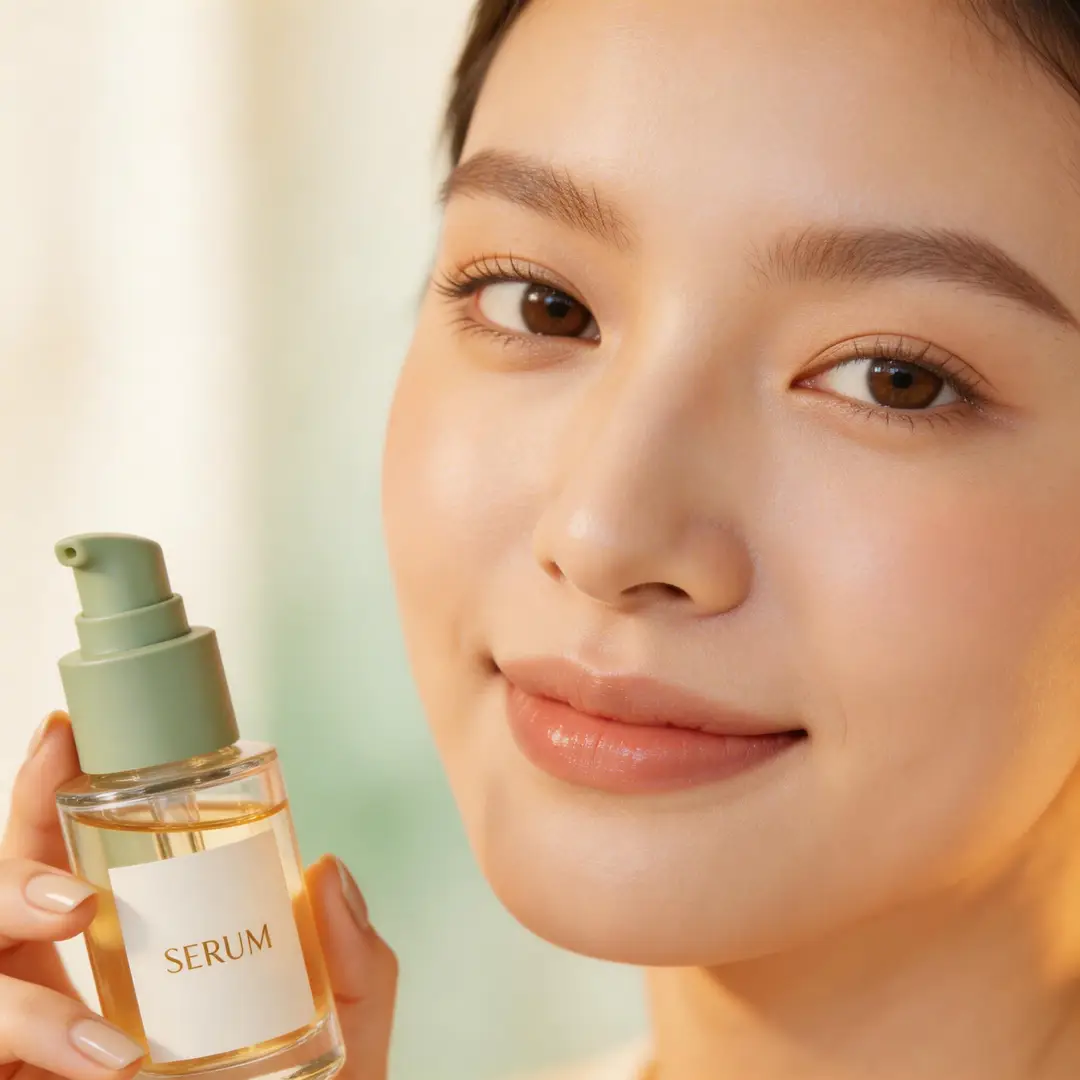
Image creation & editing
Start with a creative direction and a reusable setup. Inspect the prompt and settings, then adapt the subject, scene or motion to your own idea.
Browse motion, social clips, visual styles and character collections. Open a template to see what it is designed to create.
Review the model and recorded parameters alongside the preview. Carry the recipe into the editor instead of writing every detail from scratch.
Edit the prompt or add your own reference where the workflow supports it. Review the selected model, quality and credit estimate before creating.
Inspect the first output against your idea before spending credits on more variations. Keep a useful direction, then change the prompt or reference for your next attempt.
Build the visual, shape the motion, and review the result in IKnewU AI. Image and video tools sit together, so your idea can keep moving through the same workspace.
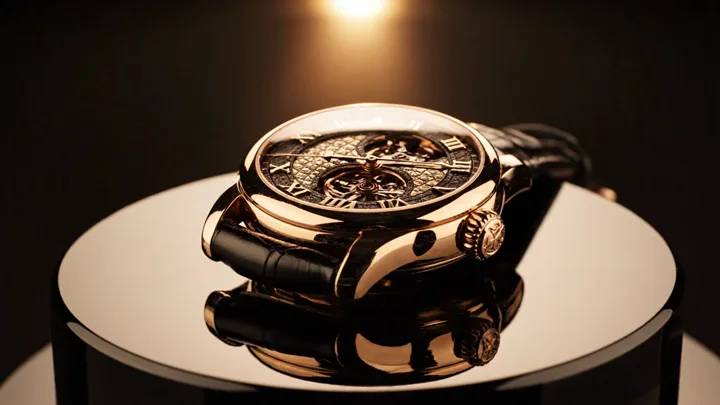
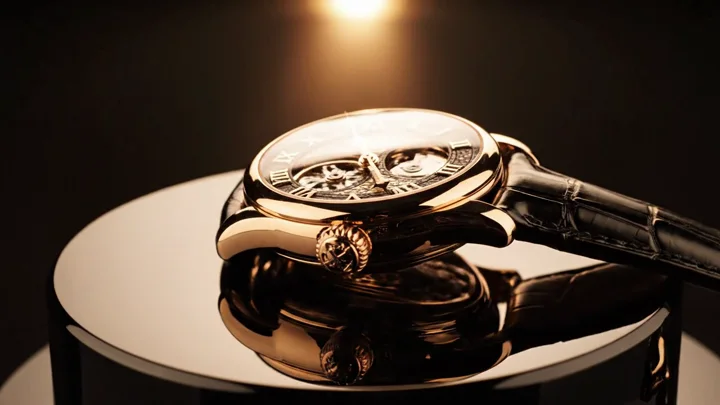
Write the subject, composition and lighting, or edit a reference image. Choose an aspect ratio that suits where the final piece will be used.
Turn a specific idea into a useful starting workflow. Explore a template when you need direction, or begin with a prompt when you already know what you want.
Start with a visual hook, a vertical scene or a reusable motion template. Adapt the subject and framing to fit your next post.
Make It Pop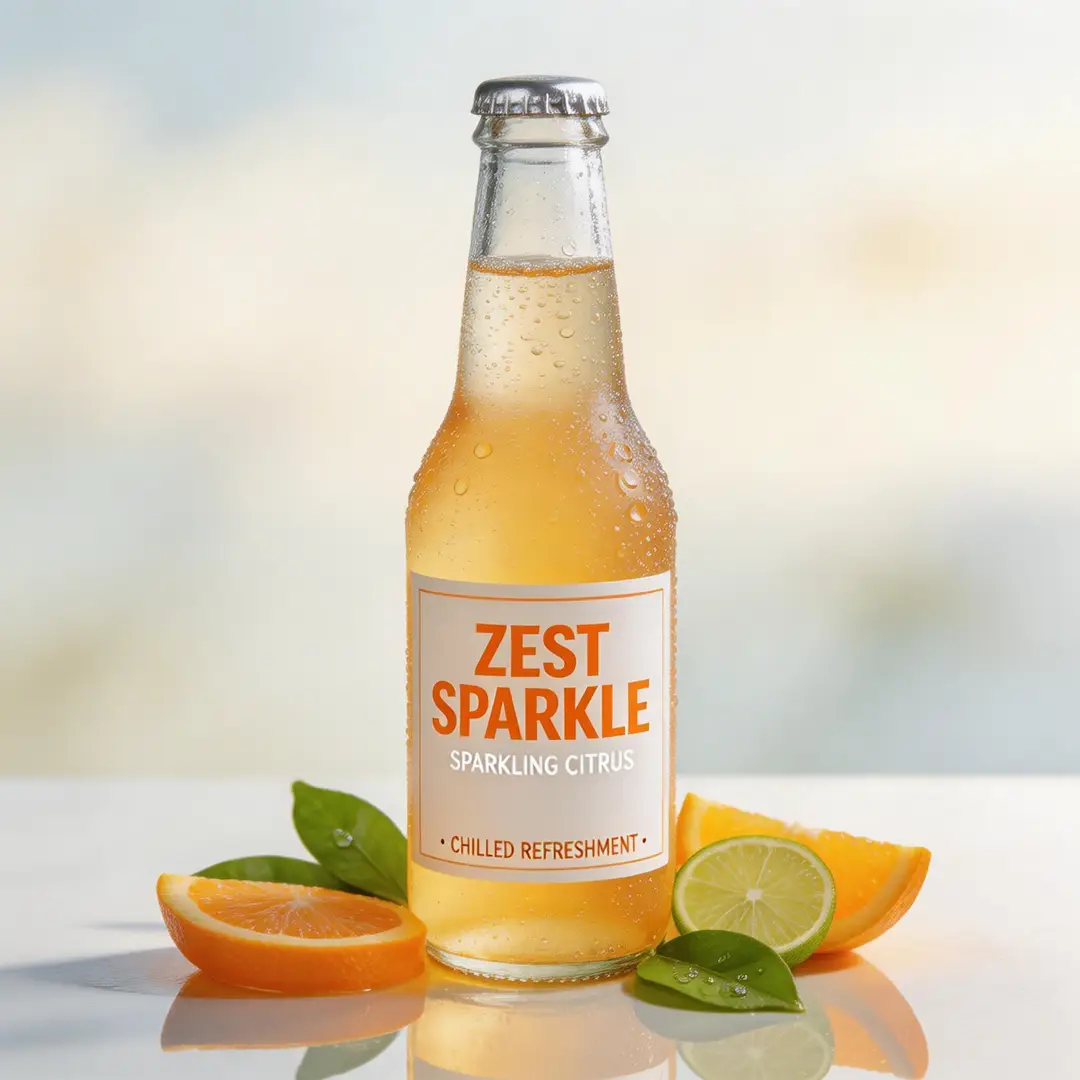
Use reference images to guide a product scene, test backgrounds and compositions, and create image variations before developing a video idea.
Create My VisualsUse a task-specific workflow when your idea needs photo editing, a kiss scene, an outfit change or a video extension. Each entry opens the relevant tool.
Set the place in the prompt, make the stills, and render a short kiss you can replay.
Make a kiss clipSet the place in the prompt, make the stills, and render a short kiss you can replay.
Make a kiss clipYou can browse examples and explore the workspace before committing to a generation. Review account access, membership and the credit estimate when you are ready to create.
Eligible new accounts receive starter credits. Sign in to generate and keep your creation history attached to the same account.
Membership unlocks member template previews and recipes. Creating a new image or video still uses credits, including when you start from a template.
The estimate depends on the model, resolution, duration and number of outputs. Check the total beside Create, then compare plans or credit top-ups as needed.
Compare monthly membership and credit top-ups with the volume you expect to create. Check template access and model eligibility as well as the credit balance.
Monthly memberships from $19.00
View plansYou upload a photo, the AI processes it to remove clothes, and the credit cost is shown before you proceed. The result can be exported as a still or animated into a short video.
Write the face, hair, clothes, and place in one prompt. IKnewU generates that still in your account, ready to open again or send into a clip.
Generate or upload a still, open image-to-video, and describe the motion. The clip starts from that picture.
Bring your next idea into IKnewU AI.
Choose a template to build on, or start with your own prompt. Your image and video tools are ready in one workspace.
© 2026 IKnewU. All rights reserved.
Templates / Resources
Generate a high-quality still with clothes removed from your uploaded photo.
Image creation & editing
Video creation
Video creation
Membership required
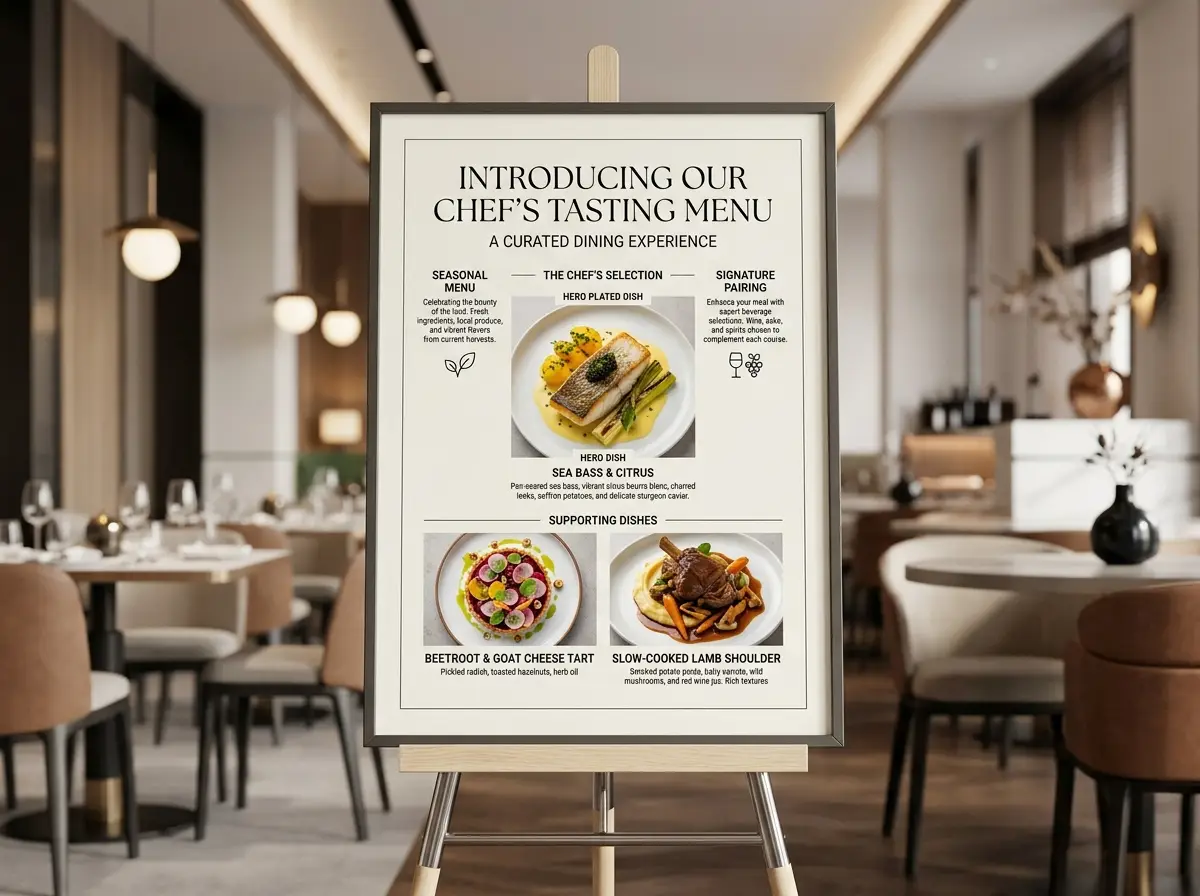
A prompt you can inspect
Restaurant explainer board
Nano Banana 2 · 4:3 · 2K
Create a modern restaurant explainer board for a chef’s exclusive tasting menu launch. Highlight one hero plated dish, two concise supporting dish close-ups, and short section labels for “Seasonal Menu”, “Chef’s Selection”, and “Signature Pairing”. Embrace a current upscale dining tone, with a refined editorial layout, understated typography, and authentic, realistic hospitality styling.
This is a recorded example setup. The available model, input and settings determine your new result.
Download the image you want to use, open image-to-video, and add it as a reference. Check that the selected video model supports your input.
Use your image as a video reference. Describe the subject action and camera movement, then choose the duration and resolution supported by the model.
Inspect the output in your result workspace. Adjust the prompt, try another available model, or continue with the image and video editing tools.
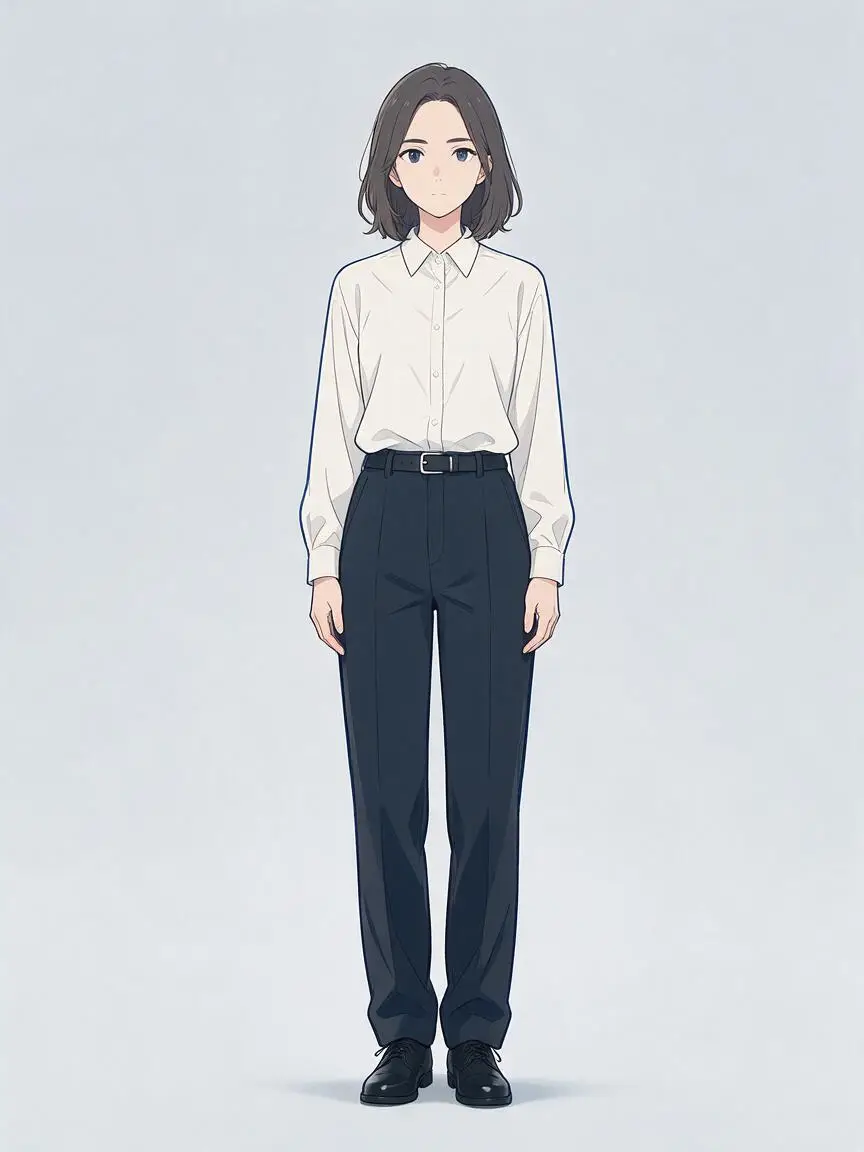
Explore character and genre collections for a starting look. Refine the prompt, then choose a still image or a motion workflow.
Create My Anime
Describe the setting, mood and action for a short scene. Use image references when the look matters, and plan the camera movement before generating.
Tell My StoryRestyle the clothes on a picture you already generated. When you want motion, send that new still into a short clip.
Restyle a stillRestyle the clothes on a picture you already generated. When you want motion, send that new still into a short clip.
Add about five more seconds of motion to a clip you already have.
Extend this clipStart from an image you already have, describe the changes, and use an image-to-image model to explore a new background, subject detail or visual style.
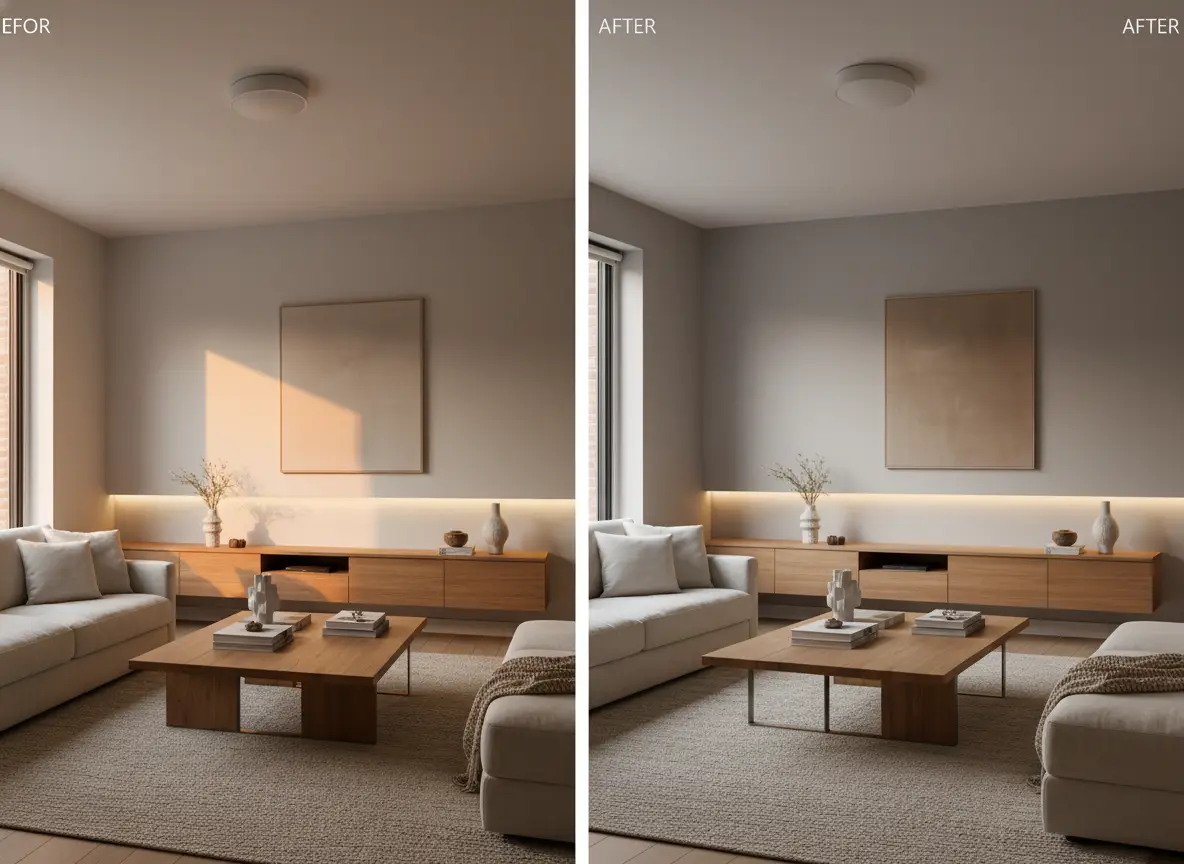
Outfit changes the clothes on a still you already have. Kiss builds a short kiss clip from stills or a prompt.
New accounts receive signup credits, and each generation spends credits. Pack and membership prices stay on the pricing page.
They stay behind the 18+ switch. Turning it on adds the adult section. Generating still spends credits.
Email [email protected] about billing, a failed generation, or account access.
A new prompt or a new run can change her face, clothes, and background. IKnewU keeps the files you generate. It does not run a live chat or a voice, and it does not promise the next still matches this one.
Beach Walk
Turn Around
IKnewU AI connects your instructions, visual references and model choices in one workspace. These four decisions explain how to guide a generation.
A prompt describes the subject, setting and action. The selected model uses those instructions to produce an image or a video.
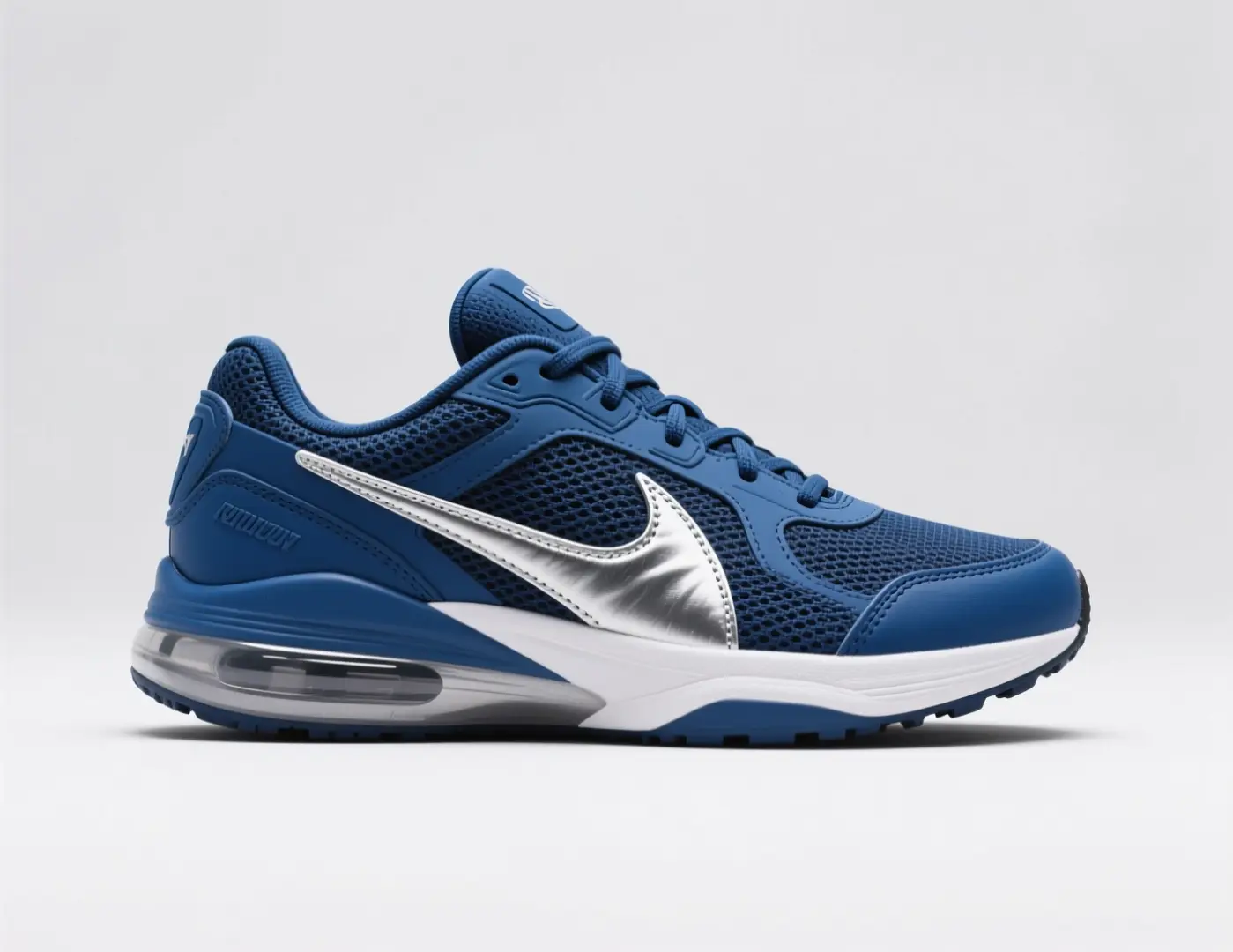
Supported workflows accept photos or reference frames alongside your prompt. Use them to guide the subject and composition rather than describe every detail again.
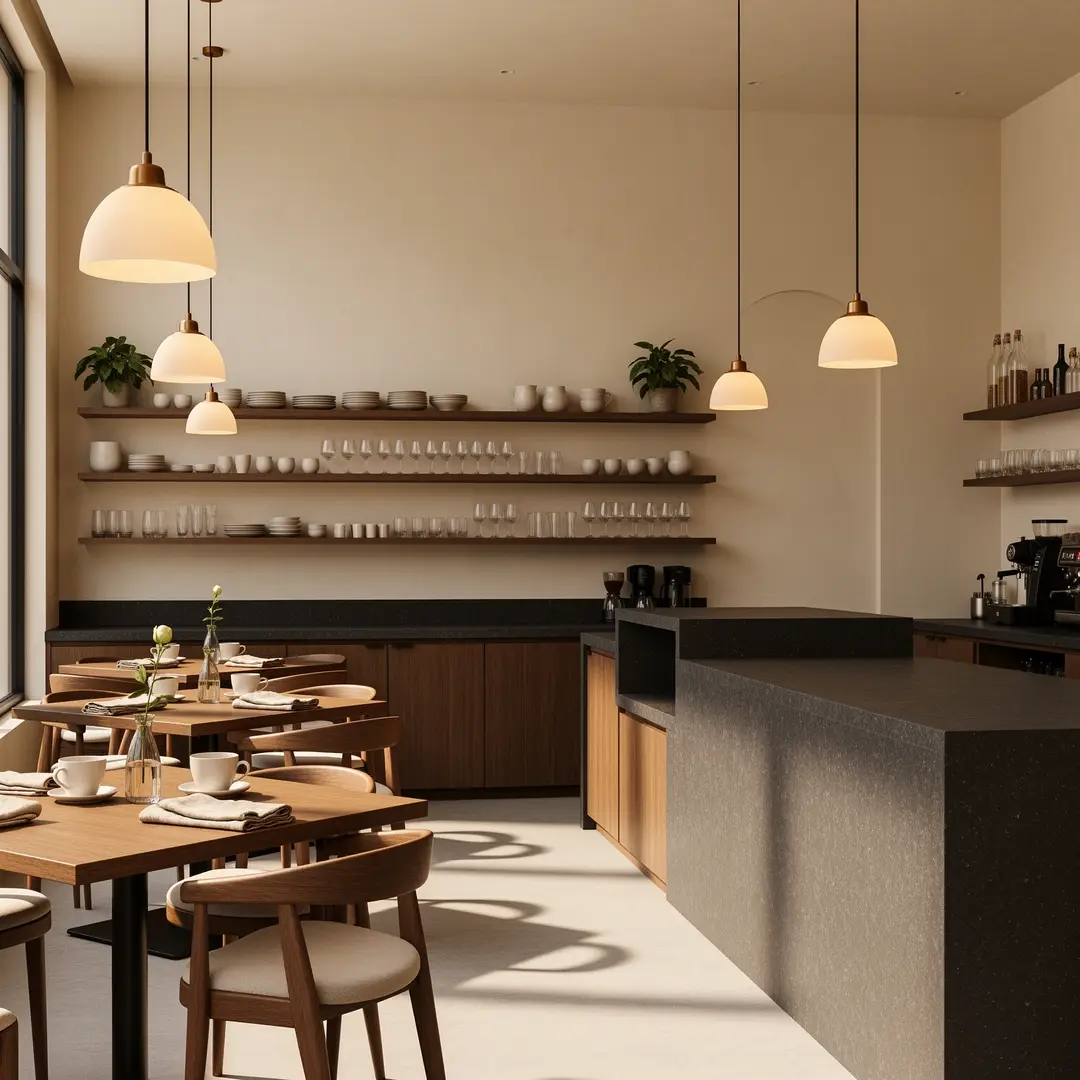
Choose the model for the task you have in mind. Image inputs, video inputs and editing modes vary by model; the workspace shows the available choices.
Create
Set up an image or video and see the result without leaving this page.
Generate 1 images · 14 credits total
Result Workspace
Nano Banana 2 example results
Sample stills from the generator. Open one, read the prompt, and start your own picture.
Web-grounded visual
Grounded city guide poster
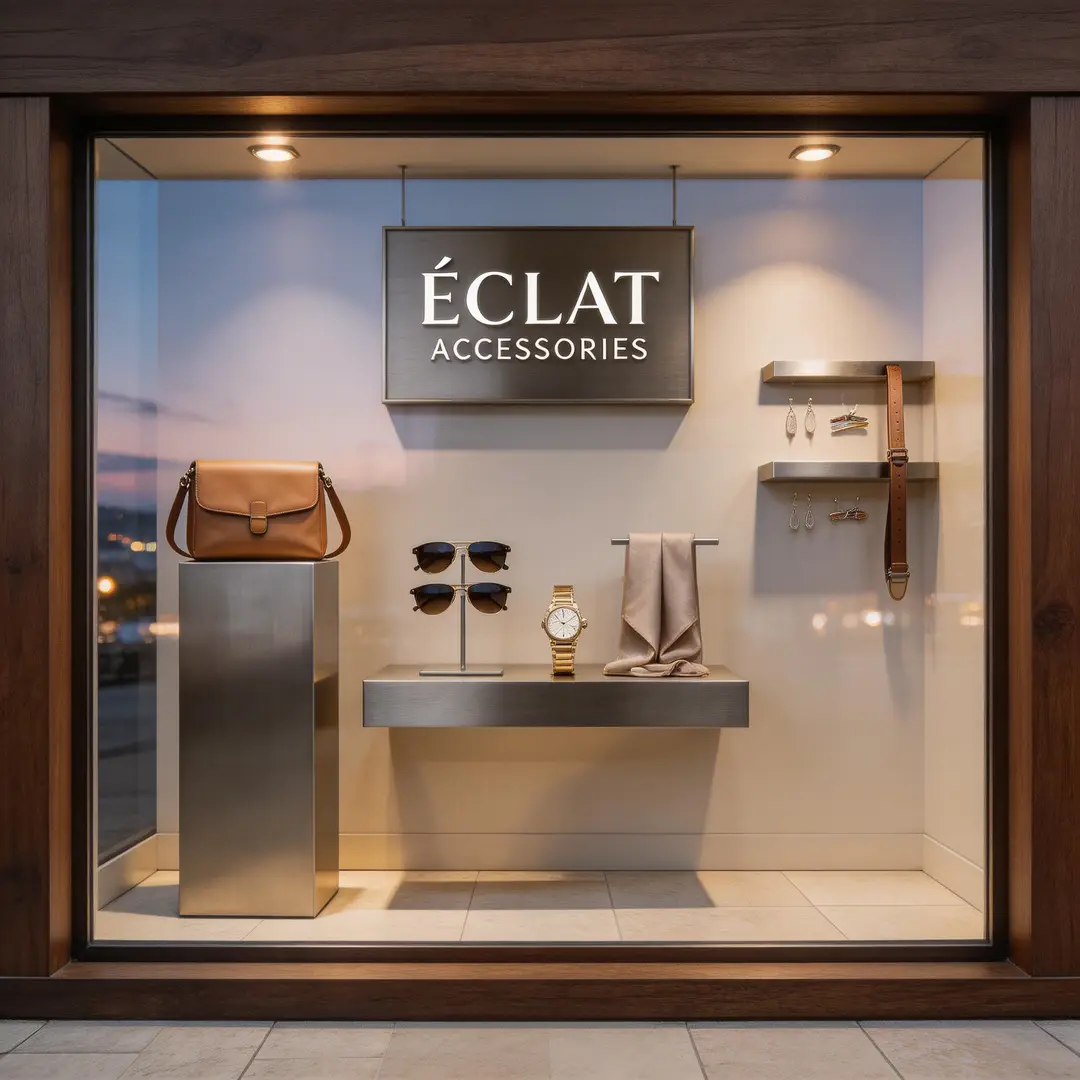
Aspect ratio and resolution set the output format. For video, the supported duration also matters. Review the selected settings and credit estimate before creating.


